Salesforce Project Management Software by Aprika

A new version of Mission Control (version 1.79) will be released on the AppExchange on Friday 9th January 2026. This notification has been issued to existing Mission Control users. It contains an overview of the new features available with this release, along with instructions on how to upgrade to the new version.
This release includes a number of new features, along with some enhancements to existing functionality, including:
Let’s get stuck into the detail…
The ‘Create Phases’ page enables you to create multiple Phases for one Project. You are also able to edit existing Phases if you need to make changes in bulk.
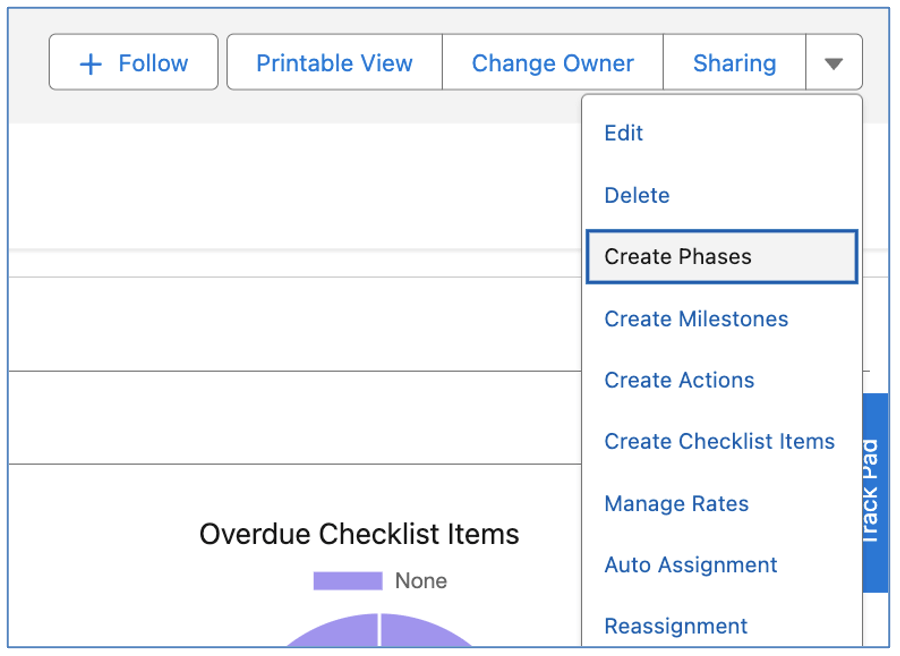
The page is accessible from the Project Page Layout. You access it by clicking the ‘Create Phases’ button, as highlighted below.
When you initially load the Create Phases page, you’ll have one draft record ready to complete, as illustrated below.

You can add multiple draft rows by entering the number of rows you wish to add and click the ‘Add Row(s)’ button.
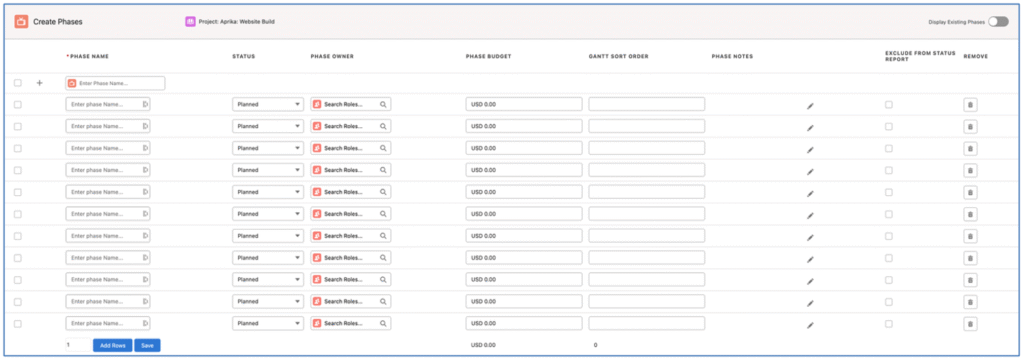
Alternatively, you can use the ‘Quick Add’ feature at the top of the page, which will add the new Phase to the bottom of the list.

Once you have completed the required information for all of the Phases, click the Save button at the bottom of the page.
In the top right corner of the page, you can toggle on/off the ability to view and edit Existing Phases. If this is toggled on, all existing Phases will be displayed to enable you to make changes as required.

Note: The maximum number of Phases supported is 200.
You are able to apply edits to multiple lines on the Create Phases page at the same time. Click the checkbox at the top of the page, or selecting the checkbox for the individual rows you wish to edit, as shown below.

Applying an edit to one of the selected rows will apply the same change to all of the selected rows. For example, in the image below, the User has selected all 3 rows.

The User adjusted the Exclude from Status Report field value on row 1, and the same change is automatically applied to rows 2 and 3.
The copy icon located to the right of the Phase Owner field on the Create Phases page enables you to copy the Phase Owner from the row above to the selected row.
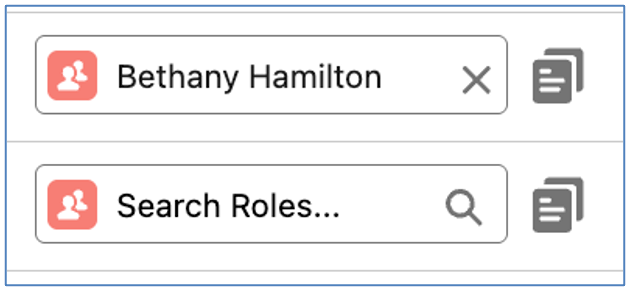
For example, in the image below, row 1 has Bethany Hamilton as the Phase Owner. If Bethany is also required to be the Phase Owner of the Phase on row 2, the User can click the icon to copy the value from row 1, rather than having to use the lookup functionality.
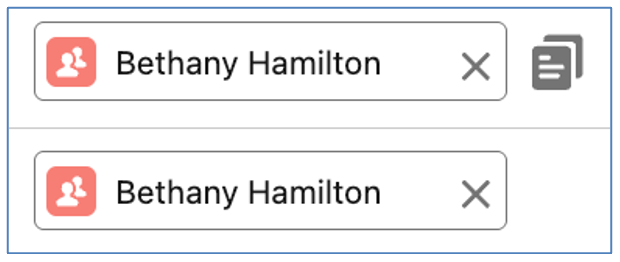
Note: clicking this icon will not work in conjunction with the multi-line edit functionality. However, manually populating one Phase Owner field would automatically populate the same value in the Phase Owner of other rows selected.
To provide customers with the ability to choose which fields are displayed on the page, there is a Field Set on the Phase Object called ‘Create Phase Fields’. All existing fields on the Phase Object are available for selection, excluding the following:
These fields are excluded from the Field Set as they will always appear on the Create Phases page by default.
The following fields are pre-selected within the Field Set and will be accessible from the Create Phases page.
If you wish to add Custom Fields or remove any of the above pre-selected fields, you can do so by editing the fields included in the Field Set.
To provide Customers with flexible options around mass assignment across Projects, Teams can be assigned ownership in a number of ways. Depending on how you want to assign Roles to your Project’s work breakdown structure, you may find one of these options provides you with an efficient method of carrying out the assignment process.
Each of these mass assignment options are explained in further detail below.
The ‘Assign Team to Project’ feature enables you to select a specific Team to be assigned to a Project, and each Role within that Team will be assigned ownership of specific sections of the Work Breakdown Structure (WBS), e.g. Phase Owner, Milestone Owner, Action Owner, Contributor, Checklist Item Owner.
There are pre-requisite configurations that need to be in place to be able to leverage this feature, including Team & Team Assignment Settings, and each record within the Project WBS needs to have a Placeholder (Asset) Role assigned as the owner.
To use a Team in this process, the ‘Squad’ field on the Team must be set to TRUE.
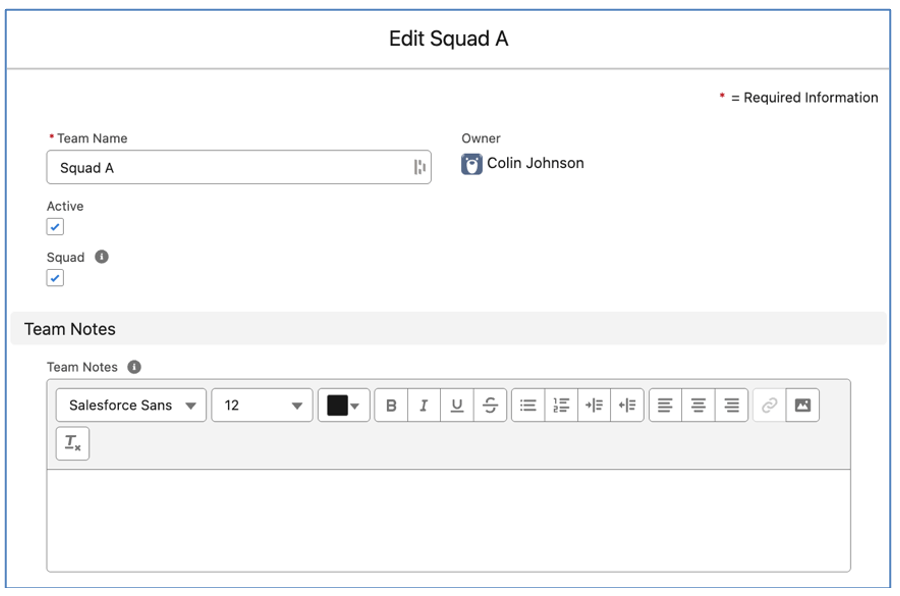
In addition, each Role assigned to the Team must have a value in the ‘Squad Placeholder’ field on their Team Assignment record.

Note: A Team cannot be set as a Squad Team if it has Team Assignment records without a ‘Squad Placeholder’ specified. You will need to populate the ‘Squad Placeholder’ field for each Team Assignment prior to setting the ‘Squad’ field on the Team to TRUE.
Note: Each Role should have a unique Squad Placeholder. For example, if you have 2 Roles that are both Developers, you would need 2 Placeholder Roles (e.g. Placeholder Developer 1 and Placeholder Developer 2).
To assign a Team to a Project, and reassign ownership to the Roles within the Team, you will need to populate the ‘Team Assigned’ field on the Project record.
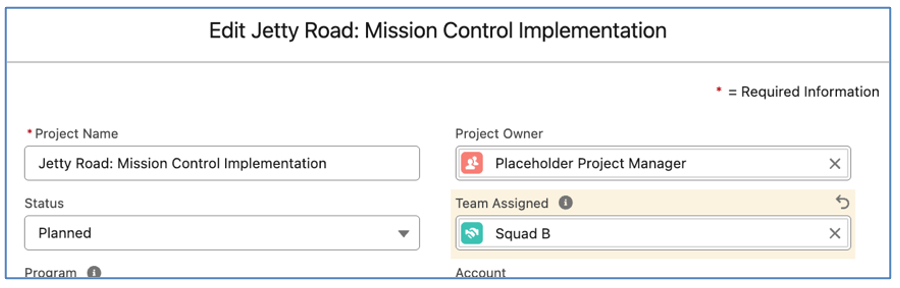
Note: The ‘Team Assigned’ field on the Project will only allow you to search for Teams where ‘Squad’ is set to TRUE.
When the ‘Team Assigned’ field is populated, the Project, Phase, Milestone, Action, Contributor and Checklist Item records will all undergo the reassignment logic as follows:
Team Assigned field is populated and was previously empty
The ‘Owner’ field for each record within the Project WBS will be reassigned based on the existing owner being populated in the ‘Squad Placeholder’ of a Team Assignment related to the Team being assigned.
Team Assigned field is being changed from one Team to another Team
The ‘Squad Placeholder’ for the existing owners will be identified based on their Team Assignment for the original Team assigned to the Project. The ‘Owner’ field for each record within the Project WBS will then be reassigned to the Role with the matching ‘Squad Placeholder’ on their Team Assignment for the new Team being assigned to the Project.
Team Assigned field was populated and is being set to empty
The ‘Owner’ field for each record within the Project WBS will be reassigned to the ‘Squad Placeholder’ specified on the Team Assignment for each Role within the Team that was assigned that is being removed.
The ‘Assign Team to Action’ feature enables you to select a specific Team to be assigned to an individual Action. This will ensure 1 Role is set as the Action Owner and all other members of the Team will be assigned as Contributors.
There are pre-requisite configurations that need to be in place on the Team Assignment records to be able to leverage this feature.
One Team Assignment record needs to have the ‘Team Lead’ Field set to TRUE. This Role will be set as the Action Owner.
To assign a Team to an Action, you will need to populate the ‘Team Assigned’ field on the Action record.
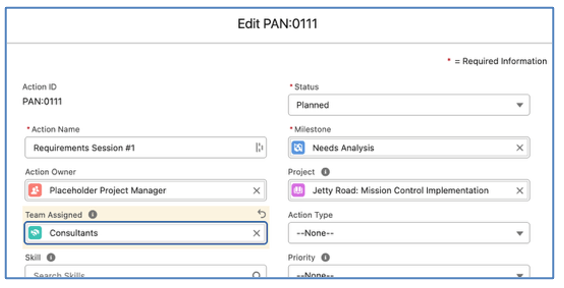
When the ‘Team Assigned’ field is populated, the Action will undergo the reassignment logic as follows:
Team Assigned field is populated and was previously empty
The ‘Action Owner’ will be assigned to the Role that has the ‘Team Lead’ set to TRUE on their Team Assignment record. All other Roles assigned to the Team will have a Contributor record created.
Team Assigned field is being changed from one Team to another Team
Existing Contributor records related to the Action will be deleted. The ‘Action Owner’ will be updated to the Role that has the ‘Team Lead’ set to TRUE on their Team Assignment for the new Team being assigned. All other Roles assigned to the Team will have a Contributor record created.
Team Assigned field was populated and is being set to empty
The ‘Action Owner’ field will be set to empty and all Contributor records related to the Action will be deleted.
A number of enhancements have been made to the Timesheet. Details of each enhancement are included below.
To reduce the need for Users to scroll to the bottom of the Timesheet to click the Save buttons, they have been relocated to the top of the Timesheet. They will float at the top as the User scrolls down to log time, therefore ensuring they are always available.

For Users that have large volumes of Actions displaying on their Timesheet, you are able to enable Pagination. This setting can be controlled by individual User settings or controlled centrally via the Timesheet Override Settings on the Control Pad of the Mission Control Console.
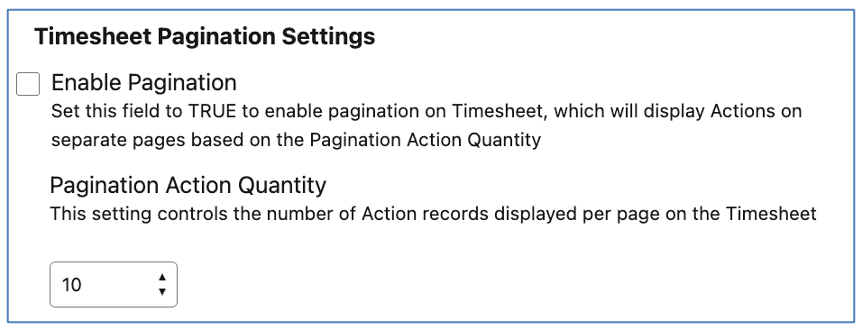
When Pagination is enabled, the User will be able to navigate between pages using the page dropdown and the navigation buttons located next to the Keyword Search field in the top right corner of the Timesheet.

The pagination navigation will only appear if the dataset returns multiple pages.
The Timesheet Setting that controls the number of days displayed for time entry has been enhanced. Previously, it included the following options:
New options have been included, enabling Users to choose from the following:
This Setting can be controlled by individual Users or centrally via the Timesheet Override Settings on the Control Pad of the Mission Control Console.
A new Timesheet Setting has been added that enables Users to control the date range used to determine which Actions are displayed on the Timesheet.
The ‘Select the timeframe to apply when loading existing Actions on to the Timesheet’ Setting enables you to control the period of time used to determine which Actions should appear on the Timesheet by default. The options within this setting are:
Note: If the ‘Show Overdue Actions’ Setting is TRUE, overdue Actions will also be displayed as well as Actions that fall within the date parameters from the above options.
This Setting can be controlled by individual Users or centrally via the Timesheet Override Settings on the Control Pad of the Mission Control Console.
The ‘Hide Non Working Day Columns (Does Not Include Holidays)’ Setting enables Users to remove the ability to log time against a non working day.

When this Setting is enabled, non working days (excluding Holidays) will not have fields displayed, preventing the User from entering hours into these days by mistake. In the example below, Monday is specified as a non working day on the Role’s record, and Saturday and Sunday are specified as non working days via the Business Hours setting.
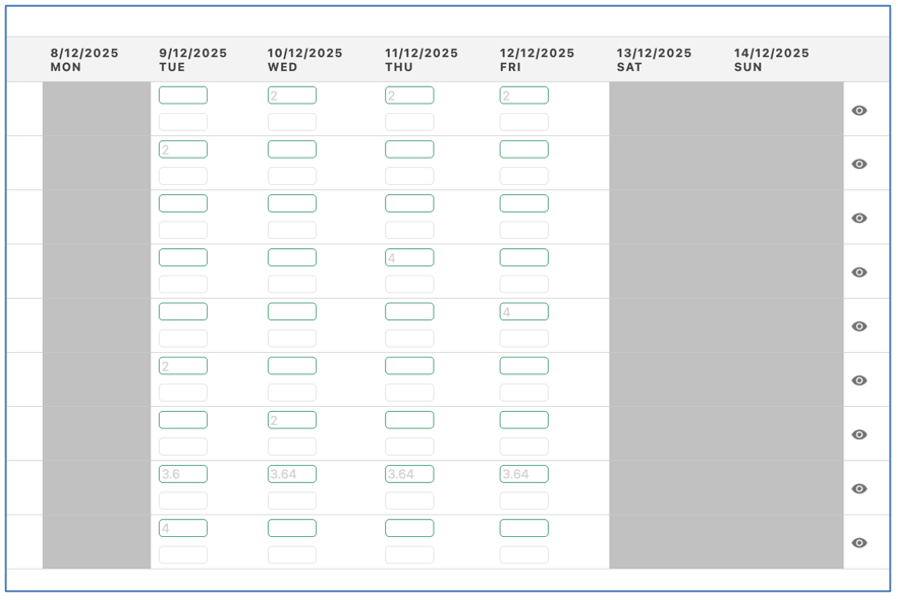
If the User logs time to one of these days outside of the Timesheet, the cells will be displayed for that individual Action. For example, the User has logged 2 hours via the Whiteboard against the Deliver Training Action for Monday 8th December.

This Setting can be controlled by individual Users or centrally via the Timesheet Override Settings on the Control Pad of the Mission Control Console.
The Timesheet includes Tabs that provide access to the following:
For each Role record, you have the ability to specify which of these Tabs they have access to, and which will load by default. This is controlled via fields within the ‘Timesheet Settings’ section of the Role Page Layout.

The fields that control User access to the Timesheet Tabs include:
| Field | Field Type | Comments |
| Timesheet Default Tab | Picklist | Allows you to specify which Tab you would like to appear when initially loading the Timesheet |
| View Timesheet Tab | Checkbox | Identifies if the User linked to this Role can view this Tab on the Timesheet |
| View Calendar Converter Tab | Checkbox | Identifies if the User linked to this Role can view this Tab on the Timesheet |
| View Timesheet Approvals Tab | Checkbox | Identifies if the User linked to this Role can view this Tab on the Timesheet |
| View Timesheet Rejections Tab | Checkbox | Identifies if the User linked to this Role can view this Tab on the Timesheet |
You can also manage these settings for all of your Role records from a List view on the Role Object Tab called ‘Role Permissions – Timesheet’.
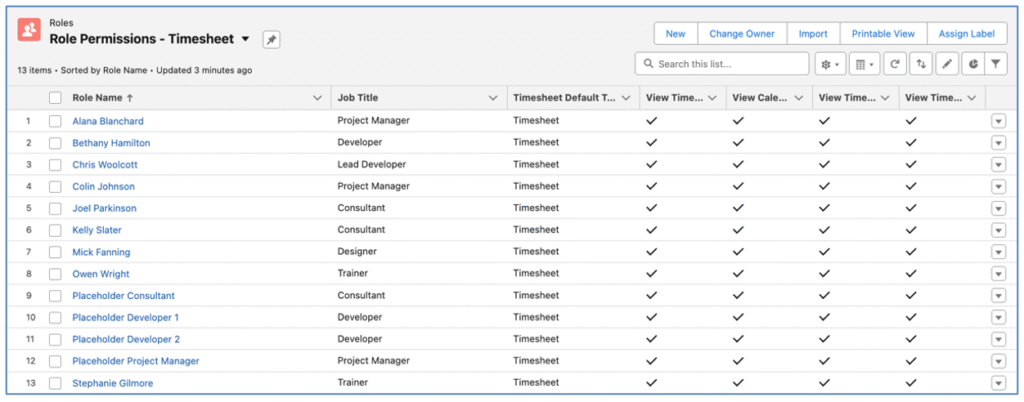
This List View provides you with the ability to bulk update Role records.
You are now able to toggle to view the Calendar Converter for a different Role other than your own.
By default, the Calendar Converter will load for your own Role record. Roles with the ‘Manage Timesheets’ or the ‘Manage Subordinate Timesheets’ permission can change the Role to view the Calendar Converter for a different Role.

If ‘Manage Timesheets’ and ‘Manage Subordinate Timesheets’ are both false, you will only be able to view the Calendar Converter for your own Role record.
The Timesheet Layout has been enhanced to adjust the columns more dynamically, to ensure the columns are more evenly spaced.
Previously, if you had hidden any of the columns (e.g. Chatter, Issue Manager, Hours, etc.), whitespace would appear in the middle of the Timesheet, as shown below.

The new layout will dynamically adjust the hours columns.

This ensures the real estate on the page is utilised more effectively.
As well as the one additional field that can be displayed below the ‘Action Name’, a further 6 Custom Fields can be added to the Timesheet for each Action.
These additional Custom Fields are configured within the ‘Timesheet Additional Field Settings’ section of the Timesheet Settings.
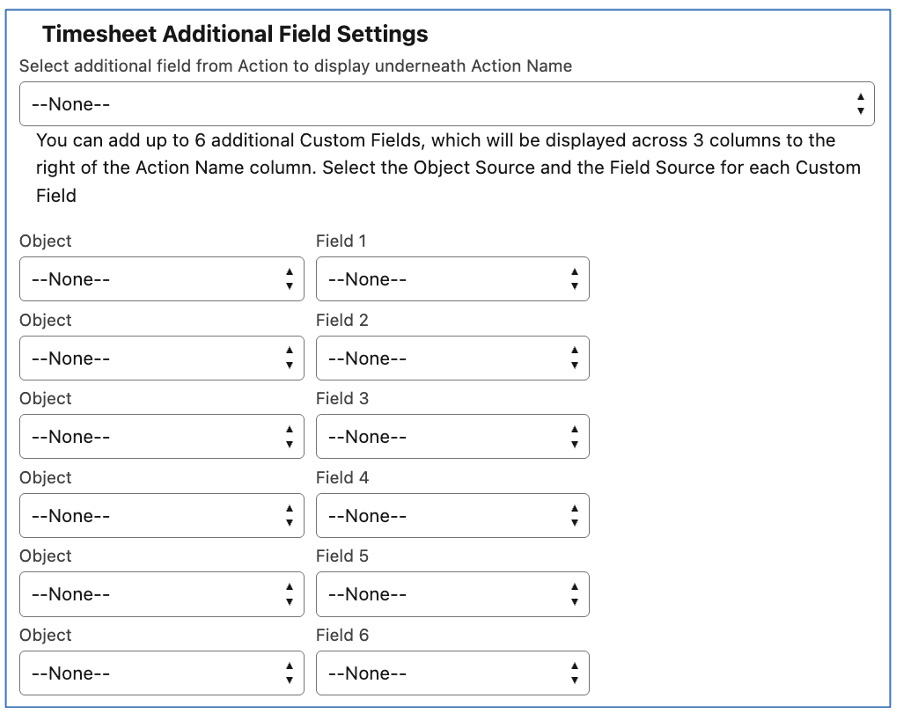
These fields can be sourced from the Project, Milestone or Action record. For each Custom Field, you need to select the Object and the Field.
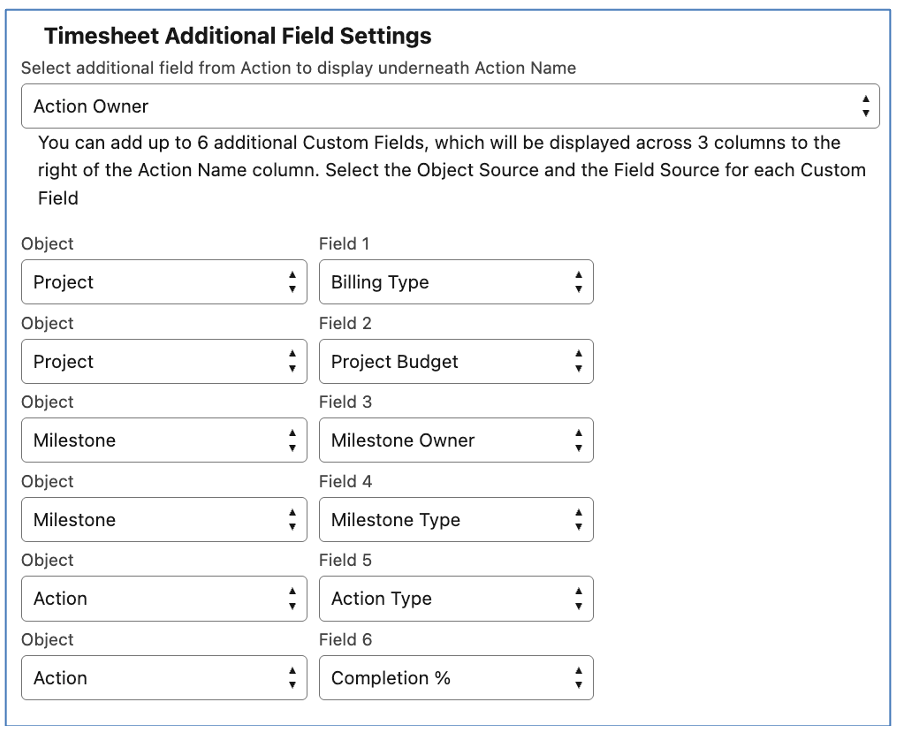
In the example above, fields from the Project, Milestone and Action have been defined.
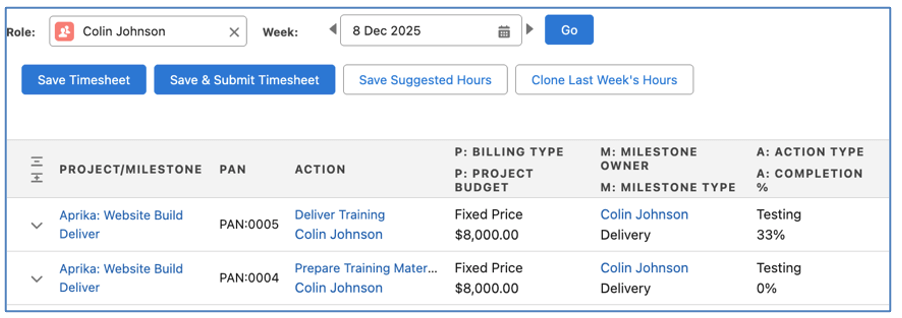
The example above shows the location of the Custom Field under the Action Name, along with the 6 additional Custom Fields.
This Setting can be controlled by individual Users or centrally via the Timesheet Override Settings on the Control Pad of the Mission Control Console.
The ‘Hide Non-Billable Row if Action’s ‘Non Billable Indicator’ = FALSE’ Setting will ensure the non billable cells will be hidden for an Action if the Action’s Non Billable Indicator field is set to FALSE.
This Setting can be controlled by individual Users or centrally via the Timesheet Override Settings on the Control Pad of the Mission Control Console.
A number of enhancements have been made to the Scheduler. Details of each enhancement are included below.
To edit an existing Holiday directly from the Scheduler, Users are able to double-click the cell containing the Holiday.
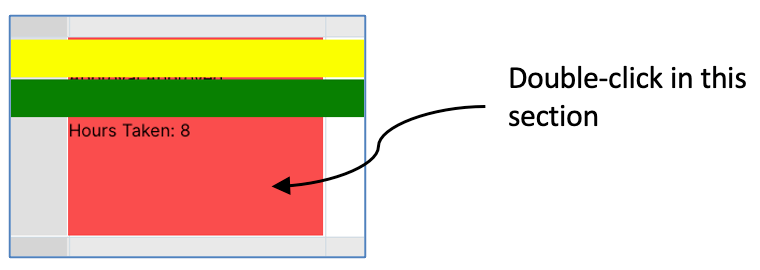
The Holiday Edit Modal will open, allowing the User to make changes directly to the Holiday record without needing to leave the Scheduler.

Note: If you double-click in a cell that doesn’t contain a Holiday, the New Action / Holiday Modal will open.
For Customers who do not want to display the Job Title on the Scheduler, the ‘Display Job Title’ Setting can be set to FALSE.

If this Setting is TRUE, when viewing the Scheduler, the Job Title will be displayed alongside the Role’s Name, as shown below.

If this Setting is FALSE, when viewing the Scheduler, only the Role’s Name will be displayed, as shown below.

This Setting is controlled by each individual User via the Settings on the Scheduler.
For Customers using the Auto Generation Field Mapping, if you have configured Record Types on the Opportunity or Project Request Object, you are able to configure Field Mapping specific to each Record Type.
When Record Types exist on the Object, ‘Configure’ buttons will be displayed above the standard Field Mapping table on the Field Mapping Modal, as shown below.

To create a Field Map for a specific Record Type, click the Configure button. This will open up a Modal that allows you to select the Record Type and create the Field Mapping rules that will be applied for that Record Type.
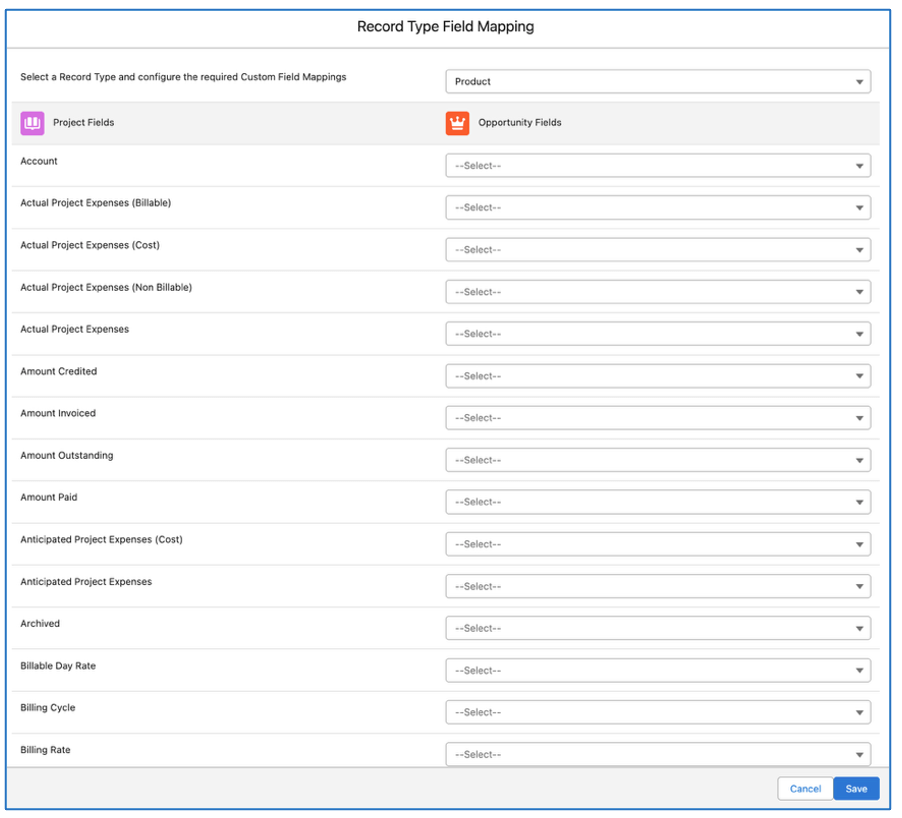
Note: If Record Types are configured on the Object, but no Record Type specific Field Mapping has been created, the standard Field Mapping will be used by default.
The Overview Tab of the Client Read Only Page has been updated to support the ability to display Phases.
By default, Phase records will be displayed. If you wish to exclude them, you can set the ‘Exclude from Client Page’ field to TRUE. Note: Setting this field to TRUE on the Phase will not filter down to the related Milestones, they are controlled by their own ‘Exclude from Client Page’ field.
Below is an example of the Overview Tab with Phases included.

You will need to configure a Sharing Rule for the Phase Object as outlined below.
Object: Phase
Step 1: Read Only Page
Step 2: Guest user access, based on criteria
Step 3: Exclude from Client Page equals FALSE
Step 4: Share with Read Only Site Guest User
Step 5: Read Only
Include Phase Custom Fields
You can include up to 5 x Custom Fields from the Phase record on the Overview Tab.
These fields need to be added to a Field Set on the Phase Object called ‘Phase: Status Report Fields’. Whilst you can add more than 5 Fields to this Field Set, only the Top 5 Fields will be displayed within the Overview Tab.
You can access the Field Set by going to Setup > Object Manager > Phase > Field Sets > Phase: Status Report Fields.
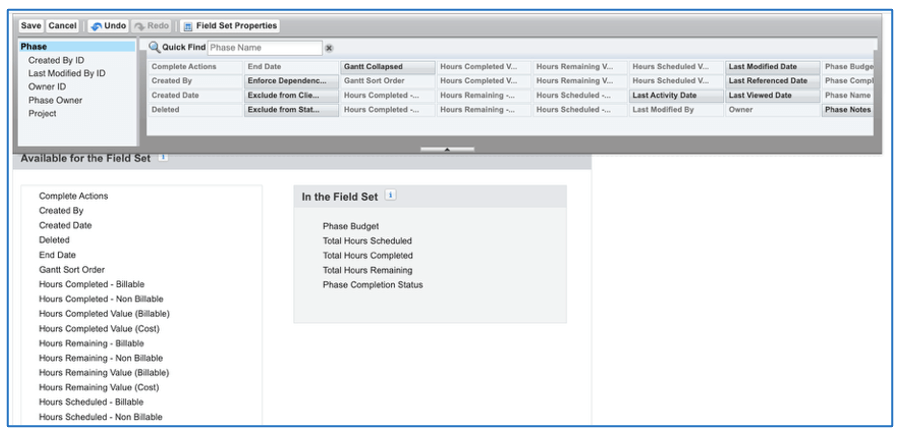
Once you have added your Fields, click Save.
A number of minor enhancements have been made to various features. Each enhancement is detailed below.
There is an automated feature within Mission Control that will automatically update the Milestone Status based on what is happening with the parent Phase.
For example, all Milestones relating to a Phase will be updated to match the Status of the Phase if it is manually set to ‘Complete’ or ‘Cancelled.
Note: This is active by default. If you do not wish this feature to be enabled, you’re able to disable it from the Control Pad on the Mission Control Console, within the Project Automation Settings section. The setting is called ‘Disable Auto Phase to Milestone Status’.
All Product-based ‘Generation Method’ options within the Opportunity Auto-Generation feature have been updated to include the creation of Phases.
If a Milestone is being added to a Project as part of a Product-based Generation Method and that Milestone relates to a Phase, the Phase will also be added to the Project being created.
The Periodic Billing Frequency field on the Project now supports two additional frequencies:
These frequencies are applied to Periodic and Retainer Billing Cycles.
Existing Customers will need to manually add these two values to the ‘Periodic Billing Frequency’ Picklist field on the Project Object.
The Custom Field section of the Filters on key pages such as the Whiteboard, Scheduler, etc., has been updated to provide more flexible filter options.
In the Custom Field section of the Filter Modal, you are able to specify whether the filter logic between the 2 Custom Fields is AND or OR.

This provides greater flexibility to construct dynamic filters that can be used across various Users.
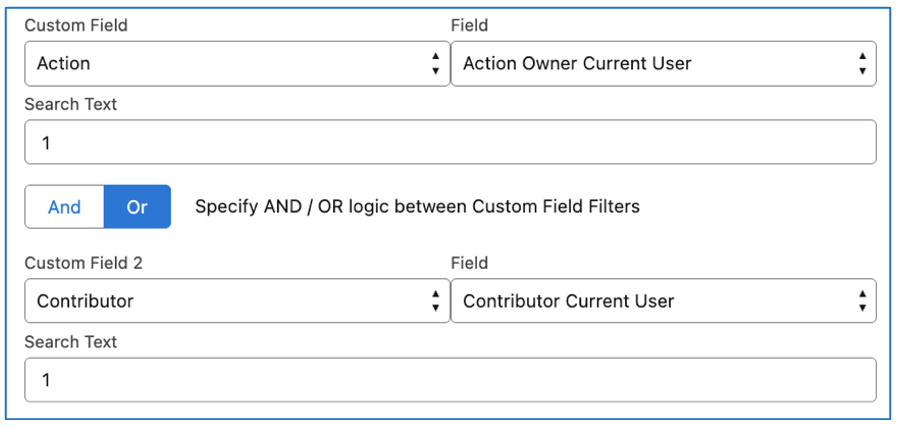
In the example above, the Whiteboard will filter to show Actions where the person looking at the page is either the Action Owner or a Contributor. This can be saved as a dynamic query that can be assigned to all Users.
The P&L Formula Fields on the Project, Milestone & Action have been updated to accommodate the various Billing Type options supported within Mission Control.
To support this enhancement, a number of new Custom Fields have been added to the Project and Milestone Objects. All of these fields are included in the ‘New Component Overview’ section of this document. These fields will be automatically updated and are not required on the Page Layout. They are considered system fields that are leveraged to support the P&L formula fields.
The ‘Invoices’ Chart on the Billing and Insights Tabs of the Project Overview, and the ‘Total Amount’ field on the Project have been updated to support accurate information relating to Projects with a Billing Type of ‘Controlled on Milestones’.
The Invoice Chart has been updated to ensure the Project Budget and Amount Remaining are calculated appropriately for the Controlled on Milestones Billing Type.
Project Budget
If (Milestone Budget Fixed Price) + (Milestone Budget Fixed Price + Expenses) is greater than zero, then (Milestone Budget Fixed Price) + (Milestone Budget Fixed Price + Expenses), otherwise Project Budget plus the greater value between M-T&M: Hours Completed Value (Billable) and M-T&M: Hours Scheduled Value (Billable) plus the greater value between M-T&M: Anticipated Expenses and M-T&M: Actual Expenses (Billable) plus the greater value between M-FP+E: Anticipated Expenses and M-FP+E: Actual Expenses (Billable)
Amount Remaining
If (Milestone Budget Fixed Price) + (Milestone Budget Fixed Price + Expenses) is greater than zero, then (Milestone Budget Fixed Price) + (Milestone Budget Fixed Price + Expenses) , otherwise Project Budget plus the sum of the following – If (the greater value between M-T&M: Hours Completed Value (Billable) and M-T&M: Hours Scheduled Value (Billable)) + (the greater value between M-T&M: Anticipated Expenses and M-T&M: Actual Expenses (Billable)) is less than Milestone Budget T&M, use the sum result, otherwise use the Milestone Budget T&M value minus (Amount Invoiced – Amount Credited).
The Project ‘Total Remaining’ formula has been modified to support the same logic as the Amount Remaining formula above.
This section includes details of any component changes within the package. This includes changes to existing fields as well as any new fields, validation rules, buttons / actions, Apex Classes, Components, etc. that have been added to the solution as part of this release.
IMPORTANT: We recommend you thoroughly review all of these components. To take advantage of the enhancements within this release, you may need to:
If you are not using the Permission Sets included with Mission Control, we recommend you check the Field Level Security for all of these fields and accessibility to the various Components to ensure all appropriate Profiles/Permission Sets have the required access.
| Field | Field Type | Comments | New/Existing |
| Timesheet Default Tab | Picklist | Identifies the Tab that loads by default on the Timesheet | New |
| View Timesheet Tab | Checkbox | Identifies if the User linked to this Role can view this Tab on the Timesheet | New |
| View Calendar Converter Tab | Checkbox | Identifies if the User linked to this Role can view this Tab on the Timesheet | New |
| View Timesheet Approvals Tab | Checkbox | Identifies if the User linked to this Role can view this Tab on the Timesheet | New |
| View Timesheet Rejections Tab | Checkbox | Identifies if the User linked to this Role can view this Tab on the Timesheet | New |
| Field | Field Type | Comments | New/Existing |
| Phase Notes | Rich Text Field | Detailed Notes relating to the Phase | New |
| Exclude from Client Page | Checkbox | Identifies if this Phase should be excluded from the Client Read Only Page | New |
| Field | Field Type | Comments | New/Existing |
| Periodic Billing Frequency | Picklist | You need to add the following values:
Semi Annual Annually | Existing |
| Team Assigned | Lookup (Team) | Set the Squad Team that will be assigned to this Project | New |
| Actual Project Expenses (Cost) | Currency (16, 2) | Identifies the Cost Amount of all Expenses that are approved on this Project | New |
| Anticipated Project Expenses (Cost) | Currency (16, 2) | Identifies the anticipated cost of expenses to be claimed on this Project | New |
| M-FP+E: Actual Expenses (Billable) | Currency (16, 2) | Identifies the value of all approved billable expenses relating to Milestones with a Milestone Billing Type of Fixed Price + Expenses | New |
| M-FP+E: Actual Expenses (Cost) | Currency (16, 2) | Identifies the cost value of all approved billable expenses relating to Milestones with a Milestone Billing Type of Fixed Price + Expenses | New |
| M-FP+E: Actual Expenses (Non Billable) | Currency (16, 2) | Identifies the value of all approved non billable expenses relating to Milestones with a Milestone Billing Type of Fixed Price + Expenses | New |
| M-FP+E: Anticipated Expenses | Currency (16, 2) | Identifies the anticipated value of all expenses to be claimed relating to Milestones with a Milestone Billing Type of Fixed Price + Expenses | New |
| M-FP+E: Anticipated Expenses (Cost) | Currency (16, 2) | Identifies the anticipated cost value of all expenses to be claimed relating to Milestones with a Milestone Billing Type of Fixed Price + Expenses | New |
| M-FP+E: Hours Completed Value (Cost) | Currency (16, 2) | Summarises the Hours Completed Value (Cost) field for all related Milestones with a Milestone Billing Type of Fixed Price + Expenses | New |
| M-FP+E: Hours Remaining Value (Cost) | Currency (16, 2) | Summarises the Hours Remaining Value (Cost) field for all related Milestones with a Milestone Billing Type of Fixed Price + Expenses | New |
| M-FP+E: Hours Scheduled Value (Cost) | Currency (16, 2) | Summarises the Hours Scheduled Value (Cost) field for all related Milestones with a Milestone Billing Type of Fixed Price + Expenses | New |
| M-FP+E: Material Costs Completed (Cost) | Currency (16, 2) | Summarises the Material Costs Completed (Cost) field for all related Milestones with a Milestone Billing Type of Fixed Price + Expenses | New |
| M-FP+E: Material Costs Remaining (Cost) | Currency (16, 2) | Summarises the Material Costs Remaining (Cost) field for all related Milestones with a Milestone Billing Type of Fixed Price + Expenses | New |
| M-FP+E: Material Costs Scheduled (Cost) | Currency (16, 2) | Summarises the Material Costs Scheduled (Cost) field for all related Milestones with a Milestone Billing Type of Fixed Price + Expenses | New |
| M-FP+E: Pending Expenses (Billable) | Currency (16, 2) | Identifies the value of all pending or submitted, but not yet approved billable expenses relating to Milestones with a Milestone Billing Type of Fixed Price + Expenses | New |
| M-FP+E: Pending Expenses (Cost) | Currency (16, 2) | Identifies the cost value of all pending or submitted, but not yet approved billable expenses relating to Milestones with a Milestone Billing Type of Fixed Price + Expenses | New |
| M-FP+E: Pending Expenses (Non Billable) | Currency (16, 2) | Identifies the value of all pending or submitted, but not yet approved non billable expenses relating to Milestones with a Milestone Billing Type of Fixed Price + Expenses | New |
| M-FP: Actual Expenses (Cost) | Currency (16, 2) | Identifies the cost value of all approved billable expenses relating to Milestones with a Milestone Billing Type of Fixed Price | New |
| M-FP: Actual Expenses (Non Billable) | Currency (16, 2) | Identifies the value of all approved non billable expenses relating to Milestones with a Milestone Billing Type of Fixed Price | New |
| M-FP: Anticipated Expenses (Cost) | Currency (16, 2) | Identifies the anticipated cost value of all expenses to be claimed relating to Milestones with a Milestone Billing Type of Fixed Price | New |
| M-FP: Hours Completed Value (Cost) | Currency (16, 2) | Summarises the Hours Completed Value (Cost) field for all related Milestones with a Milestone Billing Type of Fixed Price | New |
| M-FP: Hours Remaining Value (Cost) | Currency (16, 2) | Summarises the Hours Remaining Value (Cost) field for all related Milestones with a Milestone Billing Type of Fixed Price | New |
| M-FP: Hours Scheduled Value (Cost) | Currency (16, 2) | Summarises the Hours Scheduled Value (Cost) field for all related Milestones with a Milestone Billing Type of Fixed Price | New |
| M-FP: Material Costs Completed (Cost) | Currency (16, 2) | Summarises the Material Costs Completed (Cost) field for all related Milestones with a Milestone Billing Type of Fixed Price | New |
| M-FP: Material Costs Remaining (Cost) | Currency (16, 2) | Summarises the Material Costs Remaining (Cost) field for all related Milestones with a Milestone Billing Type of Fixed Price | New |
| M-FP: Material Costs Scheduled (Cost) | Currency (16, 2) | Summarises the Material Costs Scheduled (Cost) field for all related Milestones with a Milestone Billing Type of Fixed Price | New |
| M-FP: Pending Expenses (Cost) | Currency (16, 2) | Identifies the cost value of all pending or submitted, but not yet approved billable expenses relating to Milestones with a Milestone Billing Type of Fixed Price | New |
| M-FP: Pending Expenses (Non Billable) | Currency (16, 2) | Identifies the value of all pending or submitted, but not yet approved non billable expenses relating to Milestones with a Milestone Billing Type of Fixed Price | New |
| M-T&M: Actual Expenses (Billable) | Currency (16, 2) | Identifies the value of all approved billable expenses relating to Milestones with a Milestone Billing Type of Time & Materials | New |
| M-T&M: Actual Expenses (Cost) | Currency (16, 2) | Identifies the cost value of all approved billable expenses relating to Milestones with a Milestone Billing Type of Time & Materials | New |
| M-T&M: Actual Expenses (Non Billable) | Currency (16, 2) | Identifies the value of all approved non billable expenses relating to Milestones with a Milestone Billing Type of Time & Materials | New |
| M-T&M: Anticipated Expenses | Currency (16, 2) | Identifies the anticipated value of all expenses to be claimed relating to Milestones with a Milestone Billing Type of Time & Materials | New |
| M-T&M: Anticipated Expenses (Cost) | Currency (16, 2) | Identifies the anticipated cost value of all expenses to be claimed relating to Milestones with a Milestone Billing Type of Time & Materials | New |
| M-T&M: Hours Completed Value (Billable) | Currency (16, 2) | Summarises the Hours Completed Value (Billable) field for all related Milestones with a Milestone Billing Type of Time & Materials | New |
| M-T&M: Hours Completed Value (Cost) | Currency (16, 2) | Summarises the Hours Completed Value (Cost) field for all related Milestones with a Milestone Billing Type of Time & Materials | New |
| M-T&M: Hours Remaining Value (Billable) | Currency (16, 2) | Summarises the Hours Remaining Value (Billable) field for all related Milestones with a Milestone Billing Type of Time & Materials | New |
| M-T&M: Hours Remaining Value (Cost) | Currency (16, 2) | Summarises the Hours Remaining Value (Cost) field for all related Milestones with a Milestone Billing Type of Time & Materials | New |
| M-T&M: Hours Scheduled Value (Billable) | Currency (16, 2) | Summarises the Hours Scheduled Value (Billable) field for all related Milestones with a Milestone Billing Type of Time & Materials | New |
| M-T&M: Hours Scheduled Value (Cost) | Currency (16, 2) | Summarises the Hours Scheduled Value (Cost) field for all related Milestones with a Milestone Billing Type of Time & Materials | New |
| M-T&M: Material Costs Completed | Currency (16, 2) | Summarises the Material Costs Completed field for all related Milestones with a Milestone Billing Type of Time & Materials | New |
| M-T&M: Material Costs Completed (Cost) | Currency (16, 2) | Summarises the Material Costs Completed (Cost) field for all related Milestones with a Milestone Billing Type of Time & Materials | New |
| M-T&M: Material Costs Remaining | Currency (16, 2) | Summarises the Material Costs Remaining field for all related Milestones with a Milestone Billing Type of Time & Materials | New |
| M-T&M: Material Costs Remaining (Cost) | Currency (16, 2) | Summarises the Material Costs Remaining (Cost) field for all related Milestones with a Milestone Billing Type of Time & Materials | New |
| M-T&M: Material Costs Scheduled | Currency (16, 2) | Summarises the Material Costs Scheduled field for all related Milestones with a Milestone Billing Type of Time & Materials | New |
| M-T&M: Material Costs Scheduled (Cost) | Currency (16, 2) | Summarises the Material Costs Scheduled (Cost) field for all related Milestones with a Milestone Billing Type of Time & Materials | New |
| M-T&M: Pending Expenses (Billable) | Currency (16, 2) | Identifies the value of all pending or submitted, but not yet approved billable expenses relating to Milestones with a Milestone Billing Type of Time & Materials | New |
| M-T&M: Pending Expenses (Cost) | Currency (16, 2) | Identifies the cost value of all pending or submitted, but not yet approved billable expenses relating to Milestones with a Milestone Billing Type of Time & Materials | New |
| M-T&M: Pending Expenses (Non Billable) | Currency (16, 2) | Identifies the value of all pending or submitted, but not yet approved non billable expenses relating to Milestones with a Milestone Billing Type of Time & Materials | New |
| Material Costs Completed (Cost) | Currency (16, 2) | Summarises the Material Costs Completed (Cost) value from all related Milestones | New |
| Material Costs Remaining (Cost) | Currency (16, 2) | Summarises the Material Costs Remaining (Cost) value from all related Milestones | New |
| Material Costs Scheduled (Cost) | Currency (16, 2) | Summarises the Material Costs Scheduled (Cost) value from all related Milestones | New |
| Milestone Budget – FP | Currency (16, 2) | Summarises the Milestone Budget field from all related Milestones with a Milestone Billing Type of Fixed Price | New |
| Milestone Budget – FP + Expenses | Currency (16, 2) | Summarises the Milestone Budget field from all related Milestones with a Milestone Billing Type of Fixed Price + Expenses | New |
| Milestone Budget – T&M | Currency (16, 2) | Summarises the Milestone Budget field from all related Milestones with a Milestone Billing Type of Time & Materials | New |
| Pending Project Expenses (Cost) | Currency (16, 2) | Identifies the cost value of all billable Expenses that are pending or submitted, but not yet approved | New |
| MTM Expense Billable Summary | Formula (Currency 16, 2) | System Formula used for P&L Calculations. Displays the greater value between M-T&M: Anticipated Expenses and (M-T&M: Actual Expenses (Billable) + M-T&M: Pending Expenses (Billable)) | New |
| Anticipated Expense Cost Summary | Formula (Currency 16, 2) | System Formula used for P&L Calculations. Displays the greater value between Anticipated Project Expenses (Cost) and (Actual Project Expenses (Cost) + Actual Project Expenses (Non Billable) + Pending Project Expenses (Cost) + Pending Project Expenses (Non Billable)) | New |
| MTM Expense Cost Summary | Formula (Currency 16, 2) | System Formula used for P&L Calculations. Displays the greater value between M-T&M: Anticipated Expenses (Cost) and (M-T&M: Actual Expenses (Cost) + M-T&M: Actual Expenses (Non Billable) + M-T&M: Pending Expenses (Cost) + M-T&M: Pending Expenses (Non Billable)) | New |
| Anticipated Expense Billable Summary | Formula (Currency 16, 2) | System Formula used for P&L Calculations. Displays the greater value between Anticipated Project Expenses and (Actual Project Expenses (Billable) + Pending Project Expenses (Billable)) | New |
| P&L Scheduled | Formula (Currency 16, 2) | Formula has been modified | Existing |
| P&L Actual | Formula (Currency 16, 2) | Formula has been modified | Existing |
| P&L Forecast | Formula (Currency 16, 2) | Formula has been modified | Existing |
| Total Amount | Formula (Currency 16, 2) | Formula has been modified | Existing |
| Field | Field Type | Comments | New/Existing |
| Squad | Checkbox | Set this field to TRUE if this Team will be used to form a Squad of resources | New |
| Field | Field Type | Comments | New/Existing |
| Squad Placeholder | Lookup (Role) | Set to the Placeholder Role that this Role will be assigned to when using the Project Team Assignment | New |
| Team Lead | Checkbox | Set this to TRUE to identify this Role is considered the Team Lead for the Team. This person will be set as the Action Owner when using the ‘Team Assigned’ field on the Action | New |
| Field | Field Type | Comments | New/Existing |
| Team Assigned | Lookup (Team) | Set the Team that will be assigned to this Action | New |
| P&L Scheduled | Formula (Currency 16, 2) | Formula has been modified | Existing |
| P&L Actual | Formula (Currency 16, 2) | Formula has been modified | Existing |
| P&L Forecast | Formula (Currency 16, 2) | Formula has been modified | Existing |
| Field | Field Type | Comments | New/Existing |
| Anticipated Milestone Expenses (Cost) | Currency (16, 2) | Identifies the anticipated cost of expenses to be claimed on this Milestone | New |
| Actual Milestone Expenses (Cost) | Currency (16, 2) | Identifies the Cost Amount of all Expenses that are approved on this Milestone | New |
| Material Costs Scheduled (Cost) | Currency (16, 2) | Summarises the Material Costs Scheduled (Cost) value from all related Actions | New |
| Material Costs Completed (Cost) | Currency (16, 2) | Summarises the Material Costs Completed (Cost) value from all related Actions | New |
| Material Costs Remaining (Cost) | Currency (16, 2) | Summarises the Material Costs Remaining (Cost) value from all related Actions | New |
| Pending Milestone Expenses (Cost) | Currency (16, 2) | Identifies the cost value of all billable Expenses that are pending or submitted, but not yet approved | New |
| P&L Scheduled | Formula (Currency 16, 2) | Formula has been modified | Existing |
| P&L Actual | Formula (Currency 16, 2) | Formula has been modified | Existing |
| P&L Forecast | Formula (Currency 16, 2) | Formula has been modified | Existing |
| Field | Field Type | Comments | New/Existing |
| Budget Item | Lookup (Budget Item) | Identifies the Budget Item this Purchase Order relates to | New |
| Field | Field Type | Comments | New/Existing |
| Opportunity Label Text | Text (255) | Used to store the Opportunity Name | New |
The following Components have been included or updated in this Release.
| Component Type | Component Name | Description |
| Apex Class | TimesheetModalController | Required to use the Timesheet |
| Apex Class | CreatePhasesController | Required to use the Create Phases Page |
| Visualforce Page | createPhases | Required to use the Create Phases Page |
The following Validation Rules have been included or updated in this Release. It is recommended you review each Validation Rule and determine whether you wish for the rule(s) to be active or inactive.
| Object | Rule | Description | Active |
| Project | Ensure Project Budget Is Populated | Ensures the Project Budget field contains a value for Fixed Price or Fixed Price + Expenses Projects | TRUE |
As part of the upgrade process, an Install Script will execute to set default values for the following Fields / Settings.
Role records:
Scheduler Settings:
Project records (excluding where Status = Complete AND/OR Archived = TRUE AND Budget != Null)
Milestone:
Project:
Mission Control will be made available based on the following release schedule.
9th January 2026 – Available for manual upgrade from the AppExchange
24th January 2026 – Automatic upgrade to all Sandbox Orgs
7th February 2026 – Automatic upgrade to all Production Orgs
To manually upgrade to the new version of Mission Control in your organisation, please follow the steps below:
We have pre-recorded the ‘What’s New’ webinar to provide further information on how to get the best out of the new features. To access this webinar, please view the ‘Release Notes’ section of the Mission Control Support Centre – www.aprika.com/support
Some of the new features included in this release of Mission Control have come from ideas submitted from existing clients. If you have an idea for enhancing Mission Control, you can submit it via email to [email protected].
If you have any questions regarding this release notification, please do not hesitate to contact us at [email protected].